Inventario y ubicaciones de stock
Inventory and stock locations
adhere lleva el registro de cuántas unidades te quedan de cada medicamento, en qué lote, dónde las guardas y cuándo vencen — y descuenta el stock automáticamente cada vez que confirmas una toma.
adhere keeps track of how many units you have left of each medication, which lot they're from, where you store them, and when they expire — and it deducts stock automatically every time you confirm a dose.
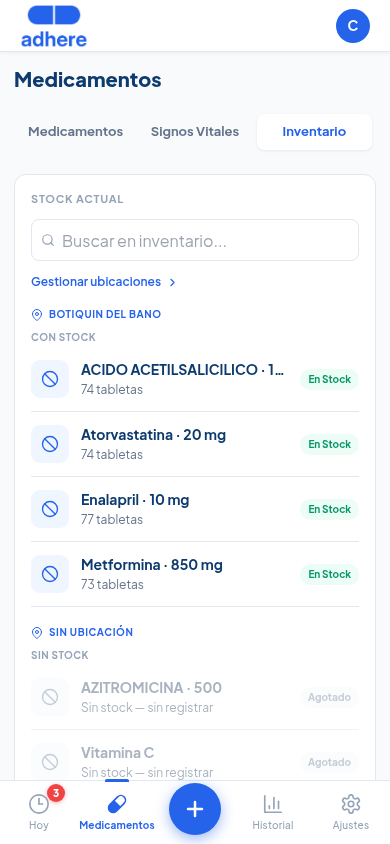
Ve a Medicamentos y toca la pestaña "Inventario". Verás tu stock agrupado por ubicación de almacenamiento (ej. "Botiquín del baño"), con un badge "En Stock" o "Agotado" por medicamento. Un buscador arriba te permite filtrar rápido.
Go to Medications and tap the "Inventory" tab. You'll see your stock grouped by storage location (e.g. "Bathroom cabinet"), with an "In Stock" or "Out of Stock" badge per medication. A search bar at the top lets you filter quickly.
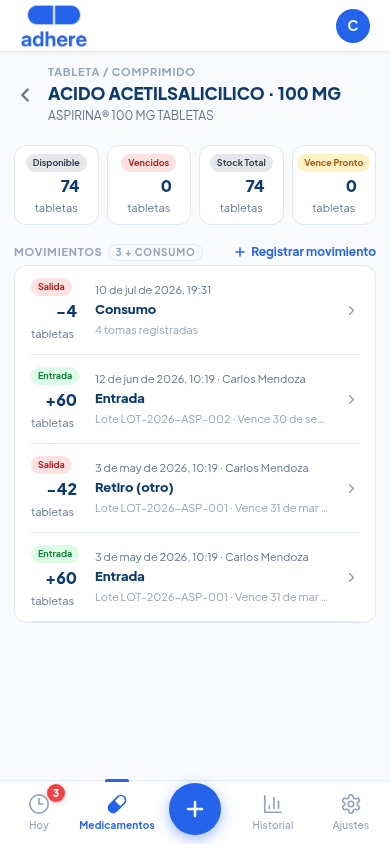
Toca cualquier medicamento para ver 4 indicadores clave — Disponible, Vencidos, Stock Total y Vence Pronto — seguidos de la lista de Movimientos: cada entrada de lote, cada retiro, y cada consumo automático por toma confirmada, con fecha, cantidad y quién lo registró.
Tap any medication to see 4 key indicators — Available, Expired, Total Stock, and Expiring Soon — followed by the Movements list: every lot entry, every withdrawal, and every automatic consumption from a confirmed dose, with date, quantity, and who logged it.
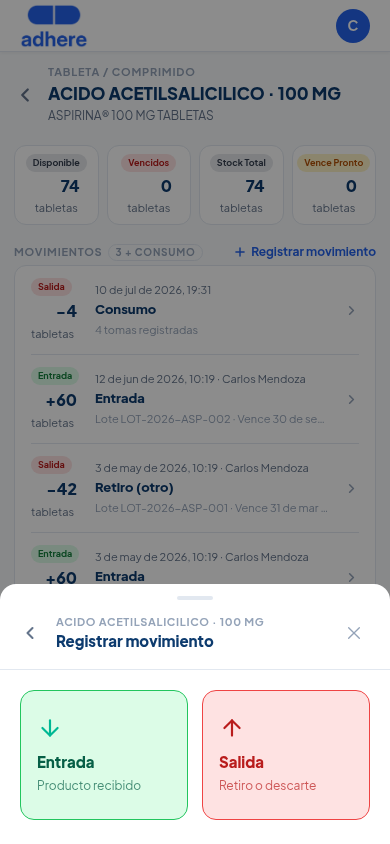
Toca "+ Registrar movimiento" y elige Entrada (producto recibido — ej. compraste una caja nueva) o Salida (retiro o descarte — ej. se venció y lo botaste).
Tap "+ Log movement" and choose Inbound (product received — e.g. you bought a new box) or Outbound (withdrawal or disposal — e.g. it expired and you threw it out).
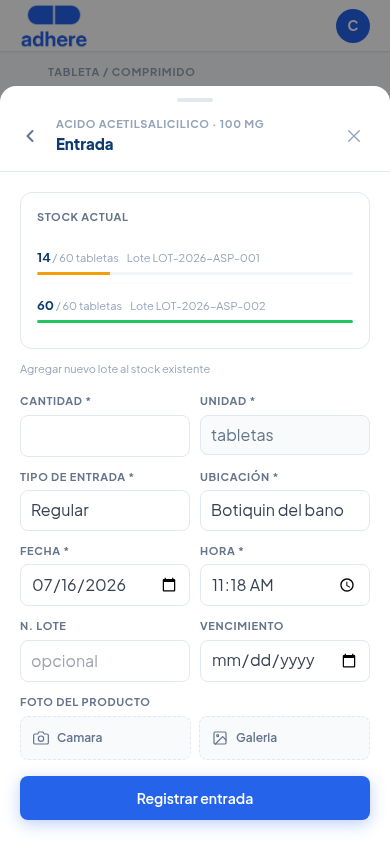
Al registrar una Entrada ves el stock actual por lote antes de agregar el nuevo, y completas cantidad, unidad, ubicación, fecha, y opcionalmente número de lote, fecha de vencimiento y foto del producto.
When logging an Inbound movement, you see the current stock by lot before adding the new one, and you fill in quantity, unit, location, date, and optionally lot number, expiration date, and a photo of the product.
Si tienes dos lotes del mismo medicamento con fechas de vencimiento distintas, adhere siempre descuenta primero del lote que vence más pronto (First-Expire-First-Out) — no del más reciente. Esto reduce el riesgo de que un lote se venza sin usar mientras consumes uno más nuevo.
If you have two lots of the same medication with different expiration dates, adhere always deducts first from the lot that expires soonest (First-Expire-First-Out) — not the most recently added one. This reduces the risk of a lot expiring unused while you consume a newer one.
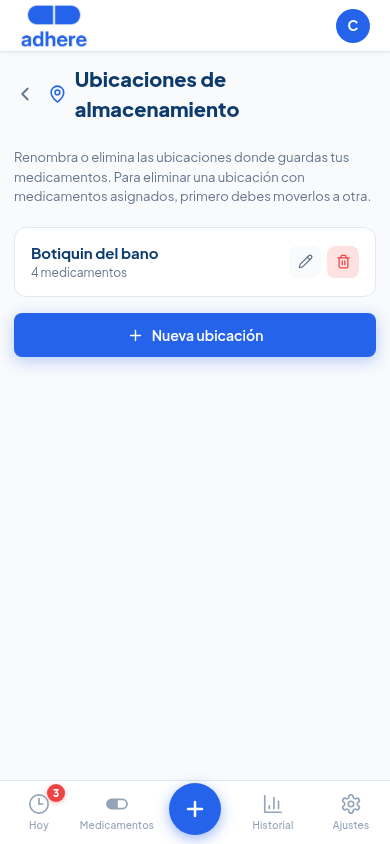
Desde el enlace "Gestionar ubicaciones" en la pestaña Inventario puedes renombrar una ubicación (ej. corregir un nombre mal escrito) o eliminarla. Si tiene medicamentos asignados, primero debes moverlos a otra ubicación — la app te guía en ese paso.
From the "Manage locations" link on the Inventory tab you can rename a location (e.g. fix a typo) or delete it. If it has medications assigned, you first need to move them to another location — the app walks you through that step.
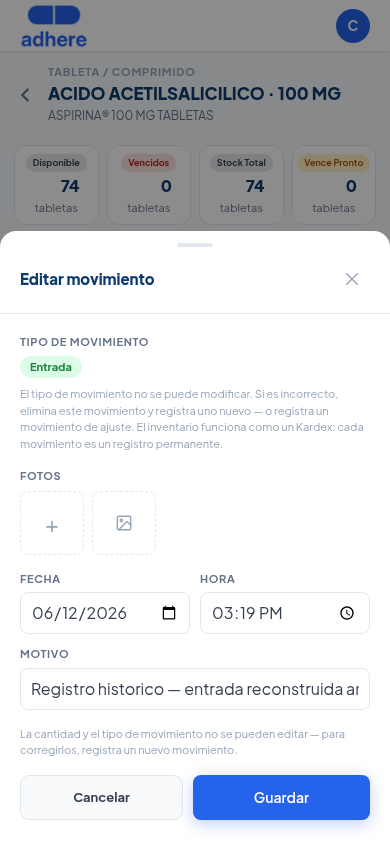
Cada movimiento es un registro permanente — como un Kardex de bodega. Una vez creado, la cantidad y el tipo (Entrada/Salida) no se pueden editar. Sí puedes corregir la fecha, el motivo o las fotos.
Every movement is a permanent record — like a warehouse Kardex. Once created, the quantity and the type (Inbound/Outbound) cannot be edited. You can still correct the date, the reason, or the photos.
Los indicadores Vencidos y Vence Pronto del paso 2 se actualizan solos según las fechas de tus lotes — no necesitas revisarlos manualmente. Si un lote está por vencer o tu stock está bajo, lo verás reflejado ahí directamente en el detalle del medicamento.
The Expired and Expiring Soon indicators from step 2 update on their own based on your lots' dates — you don't need to check them manually. If a lot is about to expire or your stock is low, you'll see it reflected right there in the medication's detail view.